EditRush is a lightweight, native video editor for the Mac. It launches instantly, plays and scrubs smoothly, and saves your work continuously. Everyday editing, without the wait.
Signed with Developer ID & notarized by AppleUpdates itself
The whole editor mid-edit: media bin, viewer, inspector and a multi-track timeline, in one window.
Native and quick.
Built with Swift, SwiftUI and AppKit on AVFoundation, with Core Image on Metal for the picture. It launches instantly and plays and scrubs smoothly.
1.5s
Saves every change.
Every edit is written to disk 1.5 seconds after you make it, and EditRush reopens your last session on launch. Quitting never loses work.
Stays on your Mac.
No log-ins and no cloud. Your projects and media never leave your Mac; the only thing EditRush fetches from the internet is the update check.
Features
The everyday jobs, done well.
Cut clips together, add titles, fades, transforms and colour, record a voiceover and export an MP4 or MOV. Every edit can be undone.
Multi-track timeline
Video above. Audio below.
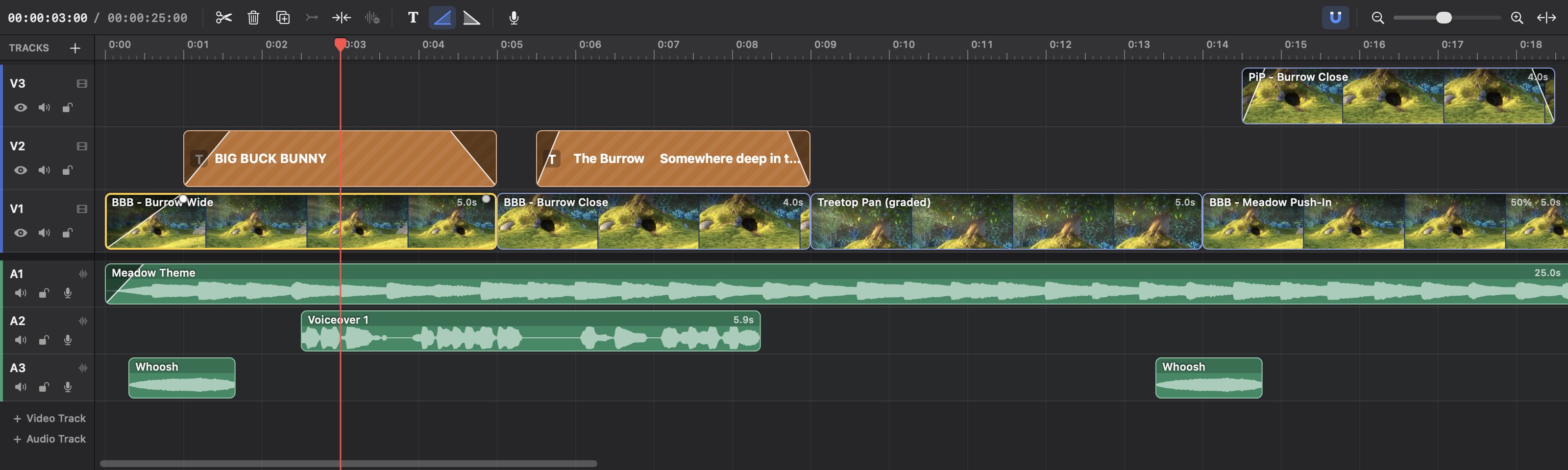
Stack video and overlay tracks over audio tracks. Split at the playhead with ⌘B, join clips back with ⌘J, ripple delete, close gaps, detach audio and nudge by a frame. Snapping keeps everything lined up.
Video, titles and an overlay above music, voiceover and sound effects, with snapping on. Shown here: the first seven seconds.
Media bin
Drop it in. Drag it down.
Import MP4, MOV, MP3, WAV, OGG, PNG and JPG with ⌘I, or drag files from Finder anywhere onto the window. Double-click an item to add it after the playhead; repeat to build a sequence.
Poster frames, audio waveforms and duration badges
Filter by All, Video, Audio or Images
Moved a file? It’s marked Missing; relink it with Locate File…
Media stays where it is on disk. Nothing is copied.
Poster frames, waveforms and durations at a glance. A tick marks media already used in the edit.
Titles
Say it on screen.
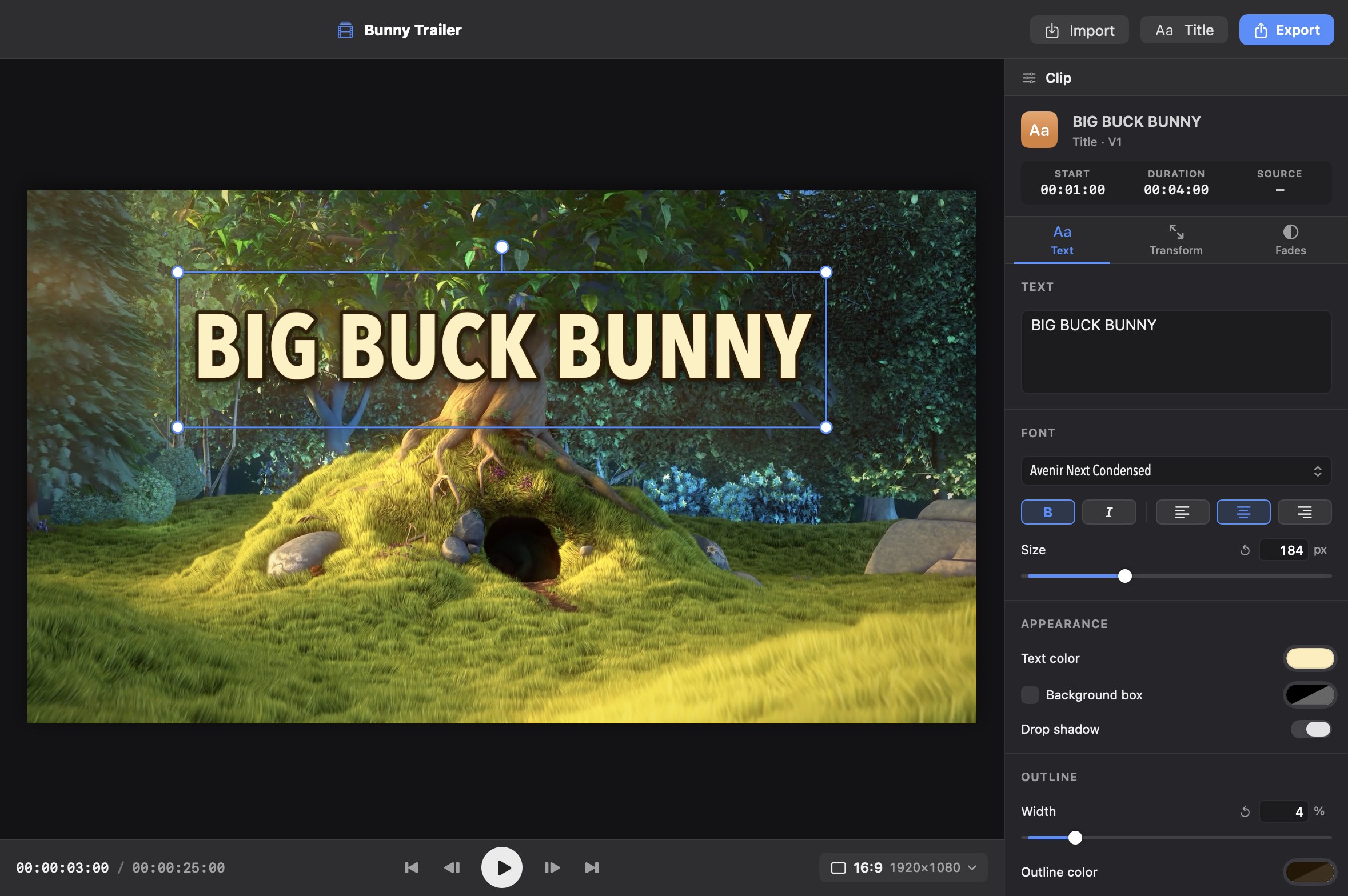
Press ⌘T for a title, then set its font, size, colour and placement in the inspector, with an outline, a drop shadow or a background box. Titles sit on the timeline as their own clips, so you trim, move and fade them like anything else.
A title in Avenir Next Condensed Bold at 184 px, with a drop shadow and a 4% outline.
Transform
Picture in picture, by hand.
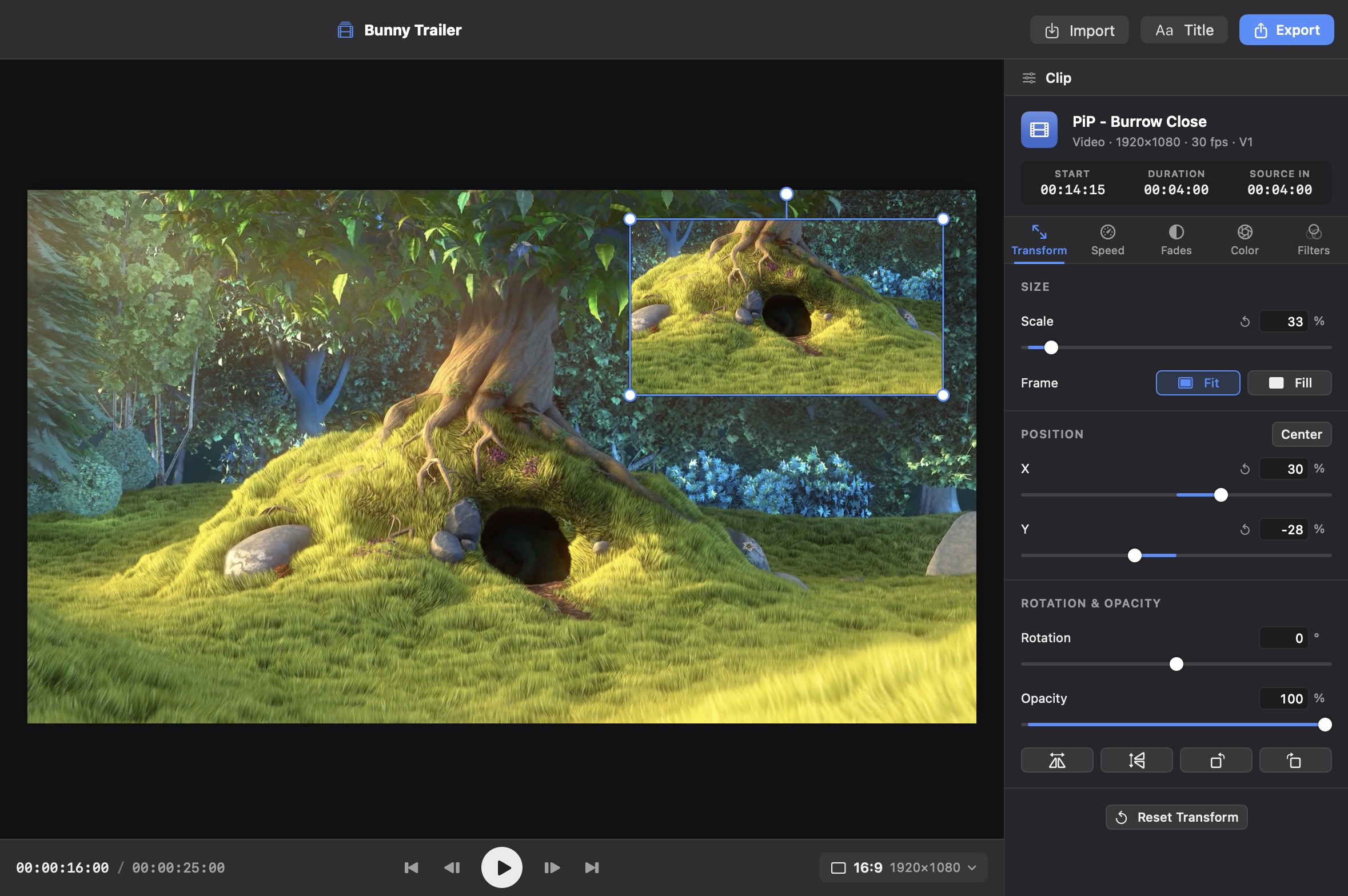
Scale and move clips right on the canvas with handles in the viewer. Put a clip on an overlay track, shrink it into a corner, and you have picture-in-picture.
Scale, position, rotation and opacity in the Transform tab
Fit or Fill framing, and a one-click Center
A close-up scaled to 33% and moved to the top right, over the meadow shot.
Colour & filters
Same shot. Better mood.
Exposure, brightness, contrast, saturation, temperature and vignette on every video and image clip, plus fifteen filters with adjustable intensity, all rendered with Core Image on Metal.
BeforeAfter
The same frame at 0:11, before and after. Rendered by EditRush from the Treetop Pan clip, once without its grade and once with it. No filter is applied.
Exposure +0.10
Brightness 0
Contrast 112%
Saturation 118%
Temperature +35
Vignette 35%
Colour
Light and colour, per clip.
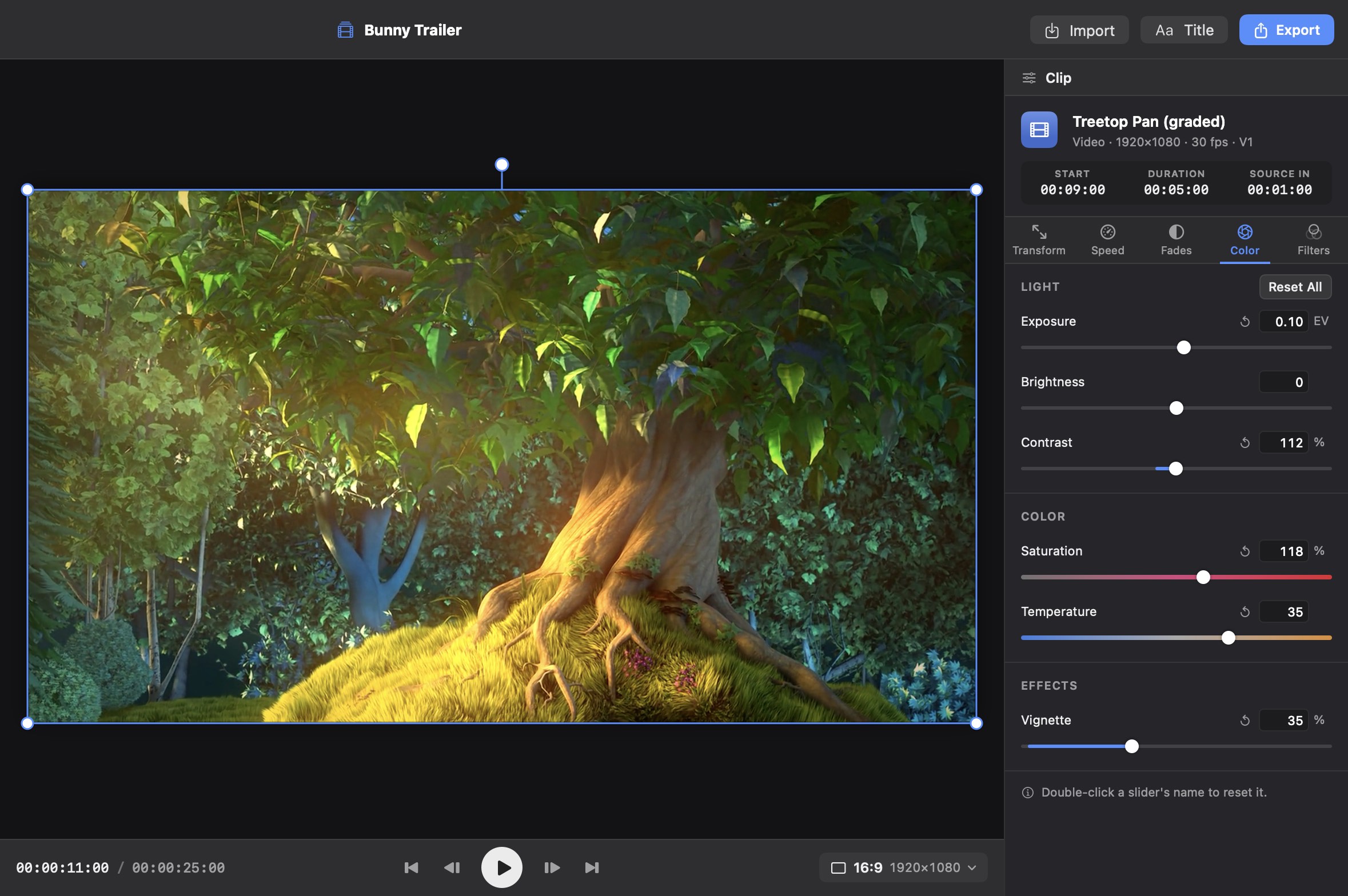
Adjust brightness, contrast and saturation, plus exposure, temperature and a vignette, on any clip. Change one clip without touching the rest of the edit, and Reset All takes it back.
The Color tab on the Treetop Pan clip at 0:11, with the same grade as the After frame above.
Filters
Fifteen looks, one click.
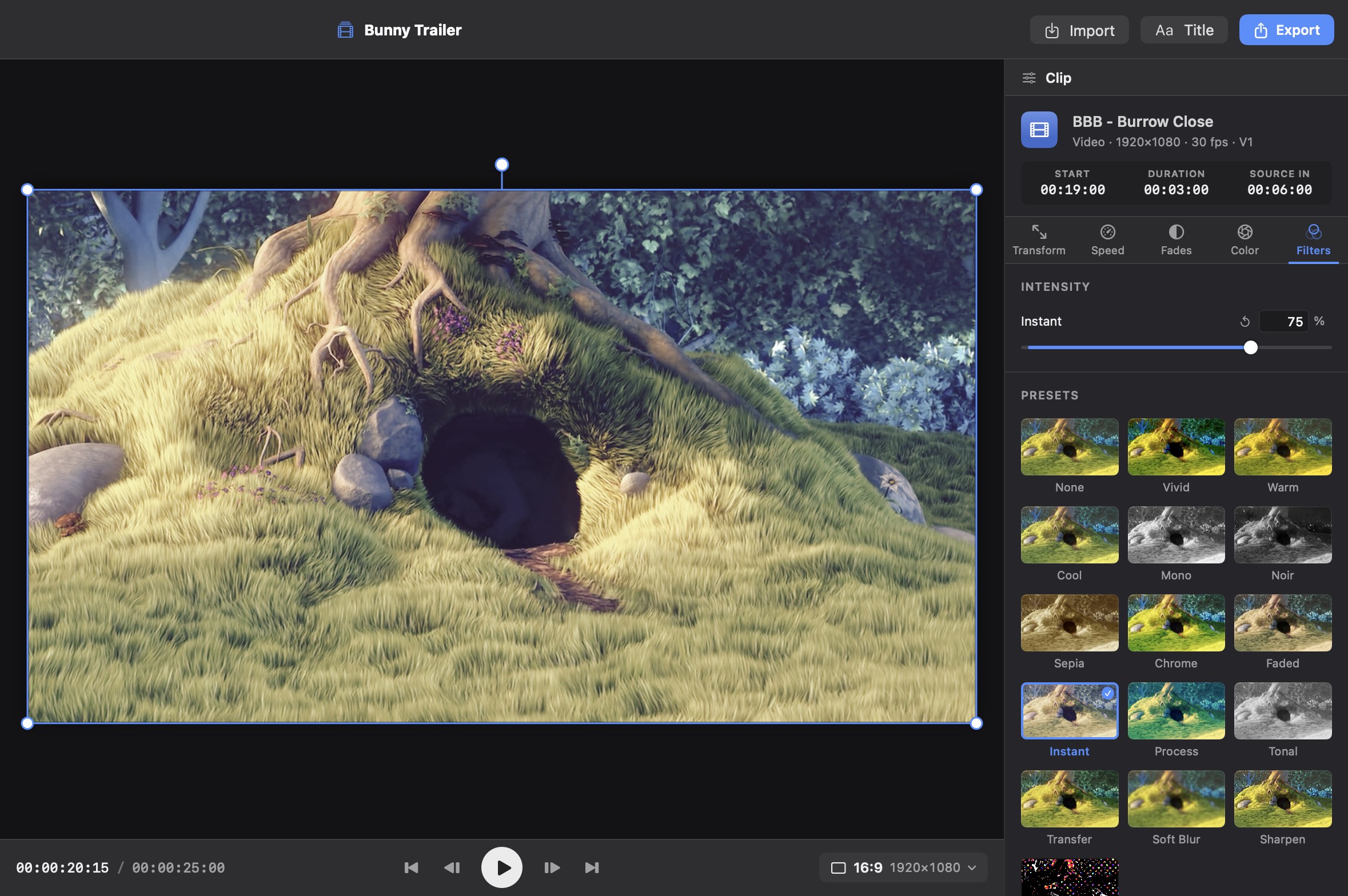
Pick a look from live thumbnails of your clip in the Filters tab, then dial in its intensity.
Vivid
Warm
Cool
Mono
Noir
Sepia
Chrome
Faded
Instant
Process
Tonal
Transfer
Soft Blur
Sharpen
Comic
The Instant filter at 75% intensity on the burrow close-up.
Speed
Slow-mo. Fast-forward.Same pitch.
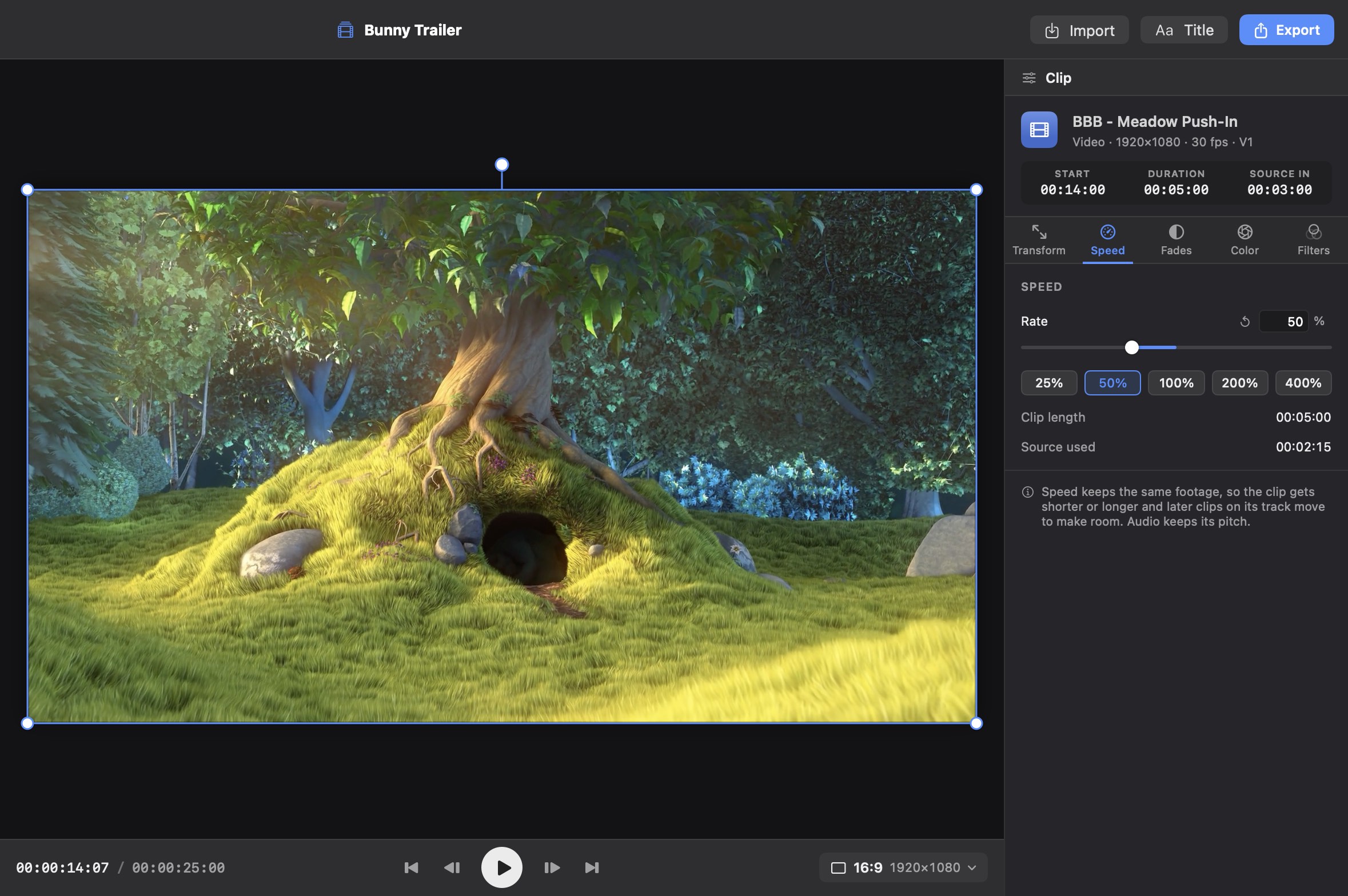
Set any video or audio clip from 10% to 1000% on the slider, type an exact percentage, or tap a preset: 25%, 50%, 100%, 200% or 400%. The clip gets shorter or longer and later clips on its track move to make room. Audio keeps its pitch.
A clip at 50%: 2.5 seconds of footage fills 5 seconds. On the timeline the clip carries a 50% badge.
Voiceover
Three, two, one. Talk.
Click the microphone on an audio track, or press ⇧⌘R. After a 3-2-1 countdown the timeline plays from the playhead while you speak. Press Space, Esc or Stop and the take lands on the track where you started.
Choose the microphone and mute the timeline while recording
Takes saved as Voiceover 1.m4a, 2, 3… in a Voiceovers folder next to your project
Record Voiceover
321
Illustration of the 3-2-1 countdown, not a screenshot.
Export · New in 1.3
Pick a size. Export.
Export at 720p, 1080p, 4K or project size, in H.264 or HEVC, as MP4 or MOV. The new File size slider runs from best quality down to a target size, and EditRush picks the bitrate to land near it. Handy when an upload has a limit.
Hide the sheet and keep editing while it exports
Progress, time remaining and cancel
A stopped or failed export never replaces an existing file
The Export sheet at 1080p, H.264, MP4. The File size slider is at Best quality; drag it left to aim for a target size.
And the rest
Everything else you reach for.
Undo for every edit
The last 1000 steps, with ⌘Z and ⇧⌘Z.
Fades from and to black
Fade up from black or fade to black on any clip. Set the length in the Fades tab, or use Fade In 1s and Fade Out 1s in the Clip menu.
Snapping and zoom
Toggle snapping with N. Zoom in and out, or Zoom to Fit with ⇧Z.
Cut, copy, paste, duplicate
Cut, copy, paste and duplicate clips with the usual ⌘X, ⌘C, ⌘V and ⌘D.
Relink missing media
Reconnect a drive and thumbnails and preview reload when you switch back.
Plain-JSON projects
One .editrush file that points at your media. Double-click it in Finder to open.
Signed and notarized
Signed with a Developer ID and notarized by Apple.
Updates itself
New versions arrive through Sparkle. That check is the only network access.
Scripts & AI agents
Your edit is plain JSON.
A project is a single .editrush file of JSON, so a script or an AI agent can build an edit by writing one. The app binary probes media, validates a project, renders a frame and exports, all without opening a window.
The open project’s file is watched, so an agent can edit it while you work. Its changes appear live as one undoable step, merged with your own.
EditRush.app/Contents/MacOS
# media entry for the project$ ./EditRush --probe clip.mov
# check the file before rendering$ ./EditRush --validate edit.editrush
# look at the frame at 5 seconds$ ./EditRush --frame f.png \
--project edit.editrush --at 5
# export, aiming for about 25 MB$ ./EditRush --export out.mp4 \
--project edit.editrush --size 25
Keyboard shortcuts
Keep your hands on the keys.
J, K and L shuttle, single keys for the common edits, and they step aside while you’re typing in a text field.
Back 1 s, pause, playJKL
Play / PauseSpace
Split at Playhead⌘B
Split (single key)S
Join Clips⌘J
Ripple Delete⇧⌫
Add Title⌘T
Record Voiceover⇧⌘R
Nudge 1 frame,.
Previous / Next Frame←→
Toggle SnappingN
Export⌘E
Start your next cut.
Free download. Signed with Developer ID, notarized by Apple, and it keeps itself up to date.